Using Active Directory
To set up LDAP authentication against Active Directory:
- Get your mojoPortal content management system site working using database authentication, i.e. "normal" installation.
- Log in as an admin user, go to the Member List page, and click Manage (or the gear icon) by an admin user.
- Change the admin user's ID to one that matches an AD user. For example, if my AD user is jaudette, I would change the mojoPortal user ID from admin to jaudette.
- Log out, then log in again using the new user ID.
- Select Administration, Site Settings.
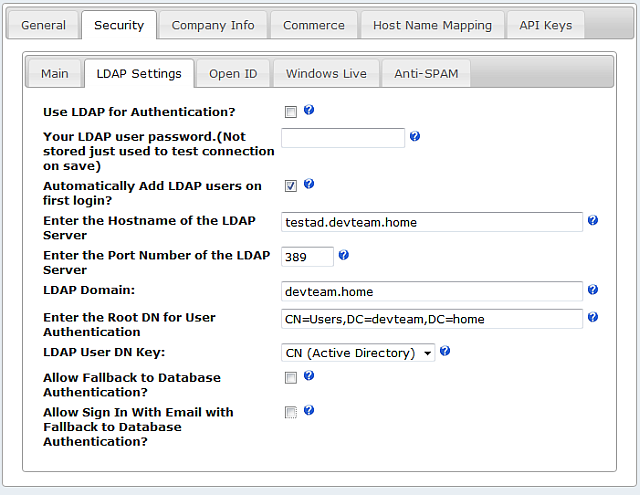
- Click the Security tab, then the LDAP Settings tab.
- Enter the Host Name of your AD server, and the LDAP port. Note that with Active Directory authentication, SSL encryption is not needed because it uses a secure connection by default.
- Enter the AD domain name.
- Enter the Root Distinguished Name (DN) settings for your schema. The setting "CN=Users,DC=devteam,DC=home" worked for me using a clean install of Windows Server 2003 and following the defaults when installing Active Directory.
- Check the "Automatically add LDAP users on first login" box, if you would like your users to be automatically created in mojoPortal following a successful LDAP authentication. Users will be created with a strong, unguessable random password. If the LDAP attributes are readable to the user logging in, the value in "cn" will be assigned to the user name, and the value in "mail" will be assigned to the email address. If these attributes are not available, the login ID will be assigned to the user name, and login ID + "@" + domain will be assigned to the email address.
Click Save to store the basic settings. Then check the box that says Use LDAP for Authentication and enter your Windows password in the password box.
Click Save again, and this time it will test the authentication against AD. If it fails it will not save the setting Use LDAP for Authentication. This is to prevent you from getting locked out of the site.
Note: As of mojoPortal version 2.3.8.5, if you wish to use database authentication, with fallback to LDAP authentication, mark the appropriate boxes on the LDAP Settings page for each site. Note also that you must leave "Disable Database Authentication" unchecked to use LDAP fallback.
For versions between 2.3.5.8 and 2.3.8.1, to enable LDAP fallback for all sites within your mojoPortal installation, add the following key to your user.config file:
<add key="UseLDAPFallbackAuthentication" value="true" />
Edited 2012-12-11 Jamie Eubanks