The Image Gallery module included in mojoPortal content management system provides a method for users to navigate and view a series of images. In the feature settings, you can choose from three different modes of display:
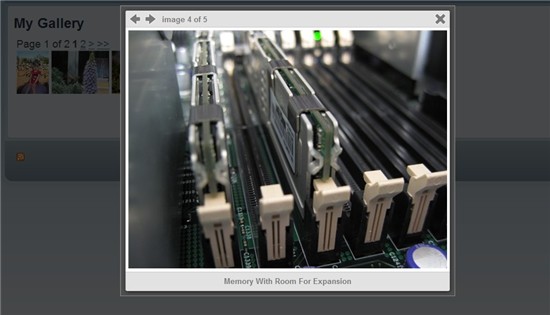
Lightbox mode (default): Displays images as a series of thumbnails, optionally grouped into pages with a navigator (use the "Thumbnails Per Page" feature setting to change the paging). Clicking a thumbnail uses the Colorbox JavaScript library to show the full-sized image in a modal window with navigation buttons and the background dimmed. The image can be dismissed by using the close button, the Esc key, or clicking anywhere on the background:
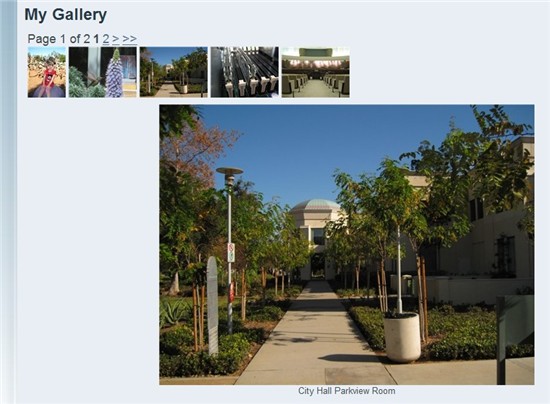
Compact mode: Thumbnails are shown identically to Lightbox mode, but when a thumbnail is clicked, Compact mode shows the full-sized image directly on the page below the thumbnails. Enable this mode in feature settings by checking the box "Compact Mode (No Gallery Effects)" in the Gallery Effects section.
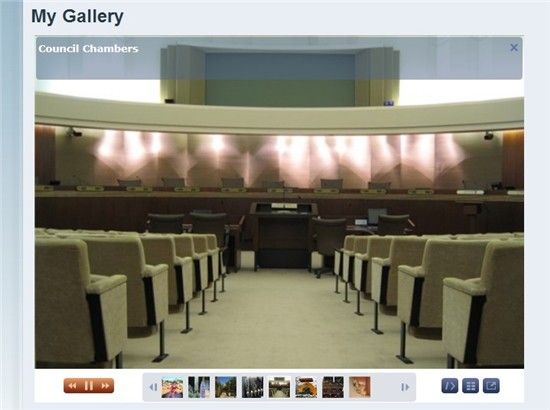
Silverlight Slide Show mode: Displays the images in a Silverlight embedded object on the page. Site users will need to have the Silverlight plugin installed in their browsers to take advantage of this mode. Enable this mode in feature settings by checking the box "Use Silverlight Slide Show?" in the Silverlight Slide Show Settings. Note that this checkbox takes priority over the Compact mode checkbox.
Created by Jamie Eubanks 2011-02-23